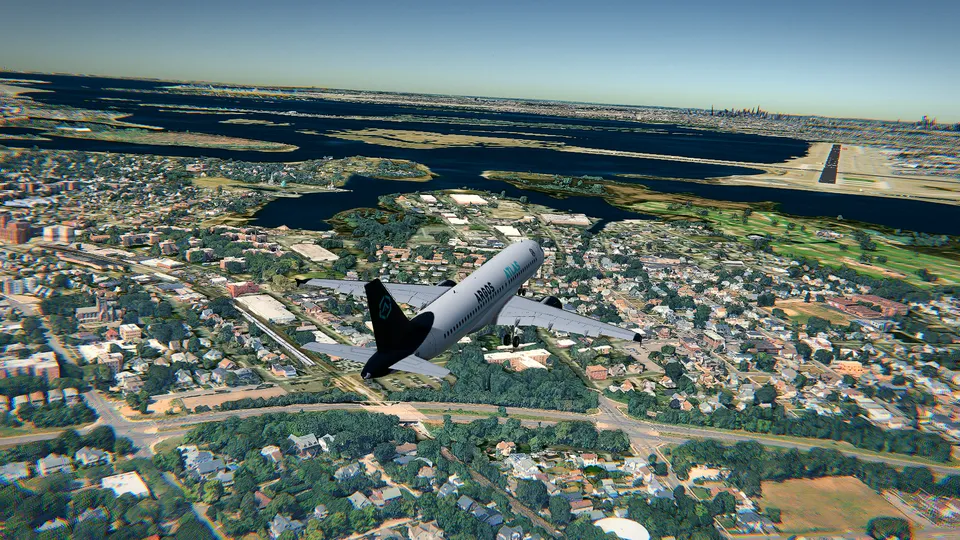
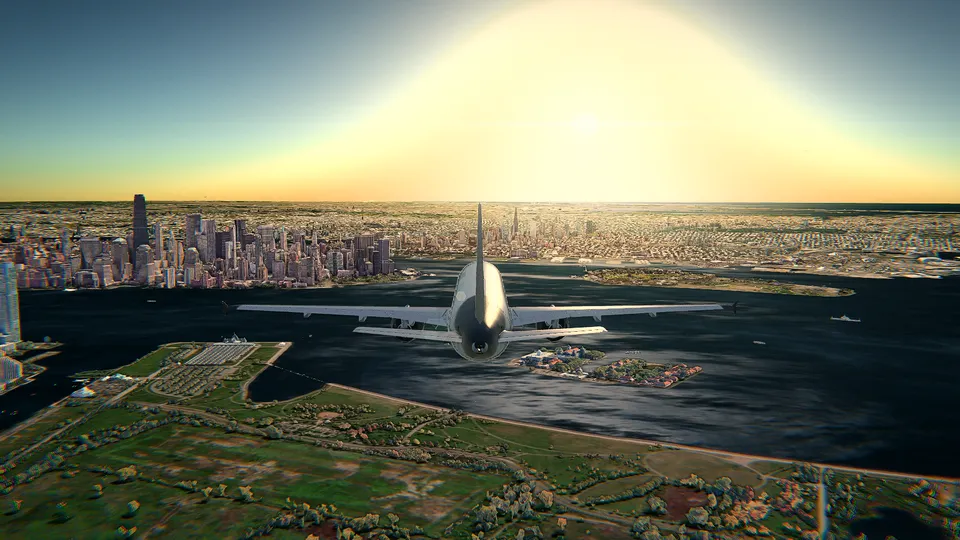
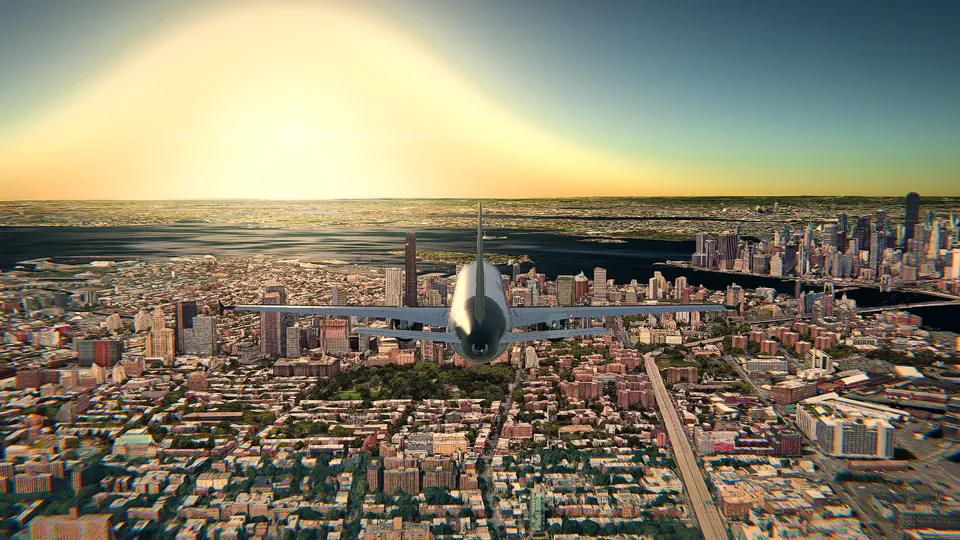
How to fly a plane in your browser: a beginner's guide
Your first flight in a browser flight simulator, step by step: choosing the aircraft and the airport, the takeoff, turning, levelling off and the keys you need, with the Cessna 172.
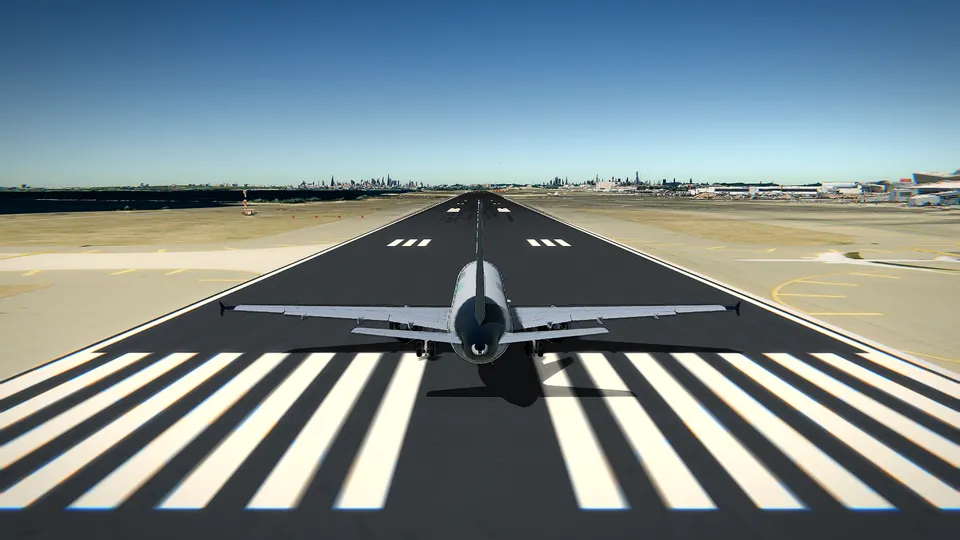
Flying a plane used to mean an expensive simulator, a big download or a trip to an airfield. Today you can line up on a real runway from a browser tab. This guide takes you through a first flight in Open Flight World, from opening the page to flying a circuit, with the Cessna 172, the aircraft most real pilots learn on, which is also the free one.
You do not need any experience. You need about ten minutes, a keyboard and a recent browser.
What you need
- A recent browser on a computer: Chrome, Edge, Firefox or Safari. The simulator uses WebGL to draw the 3D world, which every modern browser supports.
- A keyboard. A mouse or a gamepad is optional: you can switch to them later.
- Any recent computer. The Free graphics run on an ordinary laptop. With a dedicated graphics card you can choose HD, which adds Google's photorealistic 3D cities, volumetric clouds and soft shadows. The first time you open it, the simulator picks the right mode for your machine.
Phones and tablets can run it with the Free graphics, but a first flight is far easier on a computer.
Step 1: choose the Cessna 172
Open the simulator. The first screen is the hangar: the fleet turns on a dark stage, each aircraft with its figures (top speed, cruise altitude, agility, size) and a difficulty from easy to expert. The Cessna 172 is marked Easy, and for good reason:
- It flies slowly. It takes off at about 55 knots and lands at about 60, so you have time to think.
- It is stable. If you let go of the controls it keeps doing what it was doing.
- It has a fixed landing gear, so there is one thing fewer to remember.
Pick it and go on to the next step.
Step 2: choose where and when
Next comes the departure. The list shows a few featured airports, your recent ones and a search. For a first flight, choose Hong Kong International (VHHH): it is free, it sits on its own island with long runways and clear water all around, and the view of the mountains of Lantau is worth the trip.
Then choose your position. There are three:
- Takeoff: lined up on the runway, ready to go. Choose this one.
- Landing: on final approach, with the runway ahead.
- In flight: already in the air, over the airport.
For the hour, Day gives the clearest view. For the weather you can fly the real weather at the airport right now, or pick a sky; Clear is the kindest for a first flight. Then press Take off.
Step 3: the guide and the coach
When the flight starts, the simulator pauses and opens the controls guide. On the left it draws the device you are using (the keyboard, the mouse or the gamepad) and on the right the aircraft from three sides, with each control surface in the colour of the key that moves it. Press a key and watch the aircraft move. You can open this guide again at any time with F1.
At the top of the guide you choose between two modes. Simple turns on the coach: a small card that tells you the next thing to do at each moment of the flight, with the exact keys. Advanced keeps only its warnings (too slow, too fast, the gear still up). Choose Simple and close the guide.
Step 4: the takeoff
The coach now walks you through it. Here is what it asks for, and why.
- One notch of flaps: press [. Flaps make the wing produce more lift at low speed, so the takeoff run is shorter.
- Full power: hold Shift until the power is at the top, or press 9. Ctrl takes power off, and the number keys from 0 to 9 set it directly.
- Keep the centreline: the aircraft will want to drift. Use , and . to steer with the rudder and the nosewheel. Small taps work better than holding.
- Rotate at 55 knots: the coach counts the speed up for you. At 55, hold ↓ to lift the nose. Let go when the nose is about 10 degrees up.
Here is the one idea that makes everything easier in Open Flight World: the controls set a rate of turn, and when you let go the aircraft stays as it is. Hold ↓ and the nose keeps rising; let go and it stays at that angle. The same goes for banking. You never have to hold a key to keep an attitude, and you never have to trim.
Step 5: climb out and clean up
Once you are climbing (the coach calls it positive climb), keep the nose where it is and let the speed settle. The Cessna climbs best at about 74 knots. When you pass that speed, the coach asks you to take the flaps in with ], one notch at a time.
The Cessna's gear is fixed, so there is nothing to retract. In the aircraft that have retractable gear, G raises it.
Step 6: level off and turn
At the height you want, say 2,000 or 3,000 feet over the water, press ↑ briefly to bring the nose down to the horizon, then take a little power off with Ctrl. The Cessna cruises at about 120 knots.
To turn, press ← or → until the wings are banked by about 20 or 30 degrees, then let go: the bank stays, and the aircraft turns around the horizon by itself. To roll out, press the opposite arrow until the wings are level again, and let go.
That is all there is to it. Pitch with the up and down arrows, bank with left and right, power with Shift and Ctrl, and let go to hold.
Step 7: let the autopilot fly
Press A to hand the controls to the autopilot. It holds your heading and height, and much more: open the map with N, pick a place and choose Fly here or Direct to, and the autopilot flies you there. It can even fly the approach and land on any runway, which is a good way to see what a good landing looks like. Press A again to take the controls back.
Step 8: coming back down
Landing is the hardest part of flying, and it deserves its own guide: read how to land a Cessna 172. The short version: slow down, put the flaps out one notch at a time, fly a steady descent towards the start of the runway at about 65 knots, and just before the wheels touch, take the power off and raise the nose gently.
If you want to practise only that, start a new flight with the Landing position: you begin on final approach, and the coach is still there.
Keys worth knowing
| Key | What it does |
|---|---|
| P | Pause |
| R | Start the flight again |
| V | Watch the last minute again |
| C | Change the camera: cockpit, chase or front |
| N | The map |
| F1 | The controls guide |
There is a full list of controls for the keyboard, the mouse and the gamepad.
Mistakes everyone makes on a first flight
- Holding the keys too long. Because the controls set a rate, holding an arrow keeps the aircraft rotating. Tap, watch, and let go.
- Forgetting the power. Pointing the nose up without power makes the aircraft slow down until it stalls. If the coach shows Stalling, lower the nose with ↑ and add power with Shift.
- Flying too fast to land. An aircraft that arrives fast floats along the runway. Slow down early.
- Turning too steeply. Beyond 30 degrees of bank a light aircraft loses height in the turn. Gentle is better.
If it all goes wrong, press R and try again. A crash in a simulator costs nothing but a few seconds, and every pilot has made plenty of them.
Frequently asked questions
Do I need to install anything to fly in the browser?
No. Open Flight World runs in Chrome, Edge, Firefox or Safari with WebGL. You open the page and the simulator loads; there is no launcher and nothing to install.
Which aircraft should I fly first?
The Cessna 172. It is slow, stable and forgiving, it is the aircraft most real pilots learn on, and it is free in Open Flight World together with Hong Kong International.
Can I fly with just a keyboard?
Yes. Every control has a key, and the coach shows you the right key at each step. A mouse or a gamepad is optional.
What happens if I crash?
The flight ends with a fireball, smoke and debris, and you can start again at once with R. Nobody is counting: crashing is part of learning.